Remote Work Coworking-Day Privacy Checklist for Client Calls in 2026
A practical coworking-day privacy checklist for client calls, screens, Wi-Fi, notes, files, device locks, and employer-safe fallback habits.

A coworking day can be productive, but it changes the privacy model of remote work. You may be taking client calls near strangers, using shared Wi-Fi, walking away from a laptop for coffee, or opening project notes where another person can see the screen. This checklist helps remote workers, freelancers, and small teams prepare a safe routine before confidential work is exposed in a public or semi-public room.
The aim is not to turn every coworking visit into a security audit. The aim is to make a few visible habits automatic: choose the right seat, reduce what is on screen, use approved network access, protect paper notes, and know when a call should move to a private room or be rescheduled.
Before leaving home: choose what not to bring
The cleanest privacy control is reduction. Bring only the laptop, charger, hardware key, notebook, and files needed for the day. Leave printed contracts, client rosters, tax documents, and unrelated personal paperwork at home. If you need local files, put them in a dedicated project folder so you do not have to browse through private folders in public.
Check your calendar before you arrive. Mark which meetings require a private booth, headset, or reschedule option. A public table is not appropriate for calls where client names, health details, financial details, employee issues, unreleased product plans, passwords, or legal strategy may be spoken aloud.
Coworking privacy decision table
| Situation | Better choice | Avoid |
|---|---|---|
| Client-identifying details will be discussed | Use a private room, approved office, or reschedule | Taking the call from an open cafe table |
| Screen contains confidential work | Use a privacy filter and angle away from traffic | Sitting with the display facing a walkway |
| Shared Wi-Fi is the only option | Use employer-approved VPN or mobile hotspot policy | Logging into admin tools on unknown networks |
| You step away for coffee | Lock the screen and take phone, keys, and hardware token | Leaving a logged-in laptop unattended |
| Notes include client names | Use coded task labels or a closed notebook | Leaving a visible paper list on the table |
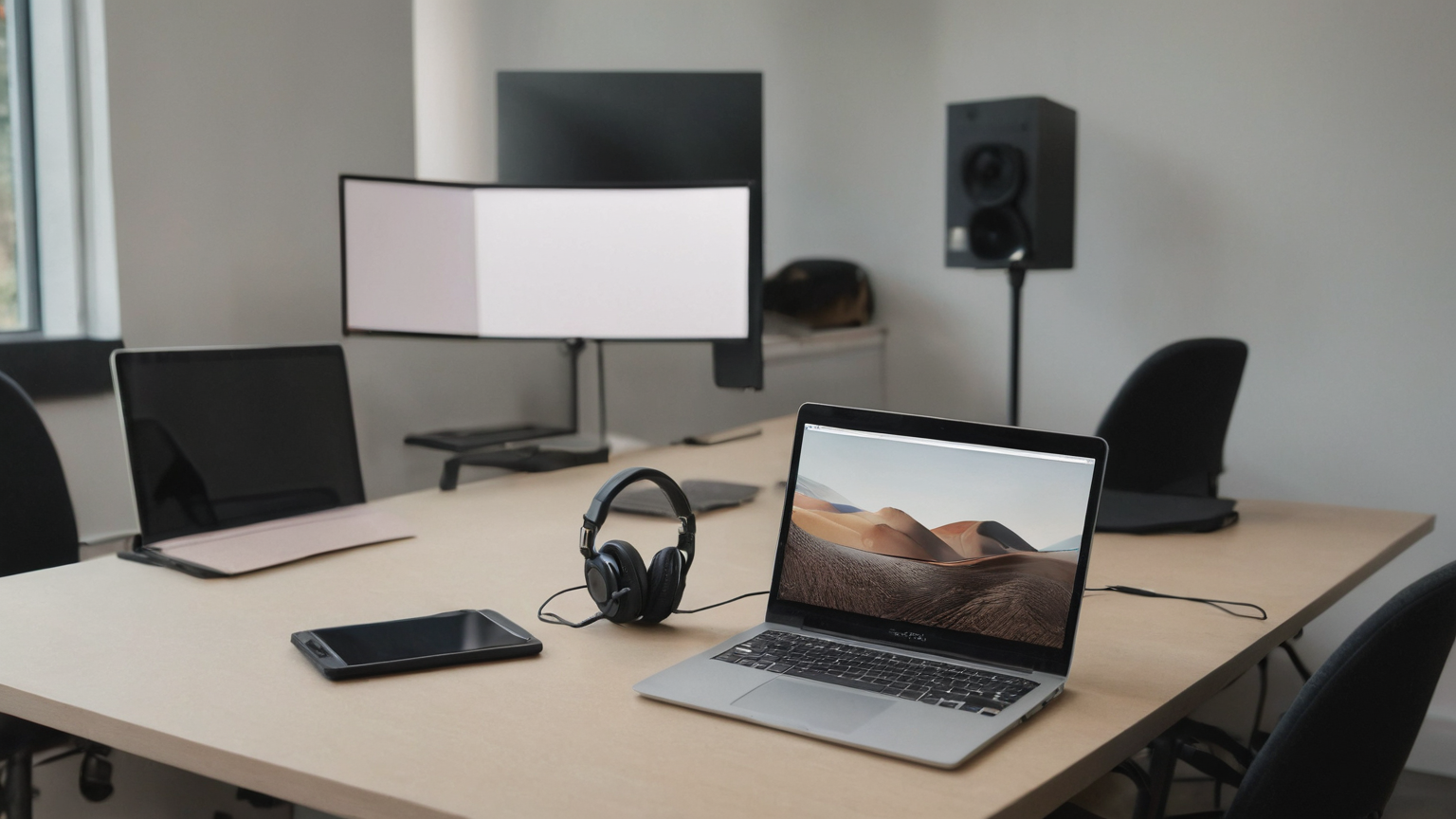
The ten-minute arrival routine
First, choose a seat with your back near a wall and your screen away from the main walking path. This does not have to be perfect; it just needs to reduce casual shoulder surfing. If the space is crowded or lighting makes the screen too visible, move confidential work to a later block.
Second, connect only through the network path approved by your employer or client policy. Many workers use a VPN, managed device profile, or phone hotspot for sensitive sessions. Do not treat a coworking Wi-Fi name as trustworthy just because it looks official. If the login page asks for more personal data than expected, pause and use a safer connection.
Third, open only the tools needed for the next work block. Close personal email, password-manager vault views, payroll dashboards, customer lists, and chat channels that are not relevant. Turn off desktop notification previews when a client call or screen share is about to start.
Meeting setup that reduces accidental disclosure
Use a headset so nearby people hear less of the conversation. Keep the microphone muted until you speak, and use meeting software settings that share a single window instead of the full desktop. If you must share a browser, open a clean browser profile with only the needed tabs. Do not share a screen while searching through files or messages.
Have a prepared line for unsafe conditions: “I’m in a public workspace and need to move this topic to a private room or follow up in writing.” This sounds professional and prevents pressure to discuss something sensitive in the wrong setting.
Notes, files, and device hygiene
Paper is still a privacy risk. Use a closed notebook, write initials or project codes instead of full client names, and store loose pages in a folder before leaving the table. For digital notes, keep local draft files in the approved workspace and avoid copying sensitive text into personal note apps just because they are convenient.
Lock the laptop every time you stand up. On shared tables, take your phone, hardware key, wallet, and notebook with you. If the device supports a short auto-lock timer, set it before the visit. At the end of the day, clear downloads, close temporary browser sessions, and sync work back to the approved storage location.
Practical checklist
- Pick a seat with the screen away from the walking path.
- Use a privacy filter when confidential work is visible.
- Connect through approved VPN, hotspot, or managed network rules.
- Disable notification previews before calls and screen shares.
- Share one window, not the entire desktop, whenever possible.
- Use a headset and move sensitive calls to a private room.
- Keep client names and private details out of visible paper notes.
- Lock the screen and take tokens/phone/notebook when leaving the seat.
- Clean up downloads and temporary tabs before leaving the workspace.
Common mistakes
A common mistake is treating coworking like a private office because everyone else is working too. Other members may be trustworthy, but they are not authorized to hear your client call or see a customer list. Another mistake is letting convenience override policy: using the fastest Wi-Fi, opening a personal cloud drive, or sharing the full desktop because it saves a minute can create a recordkeeping and confidentiality problem.
The final mistake is failing to document the boundary. If a call is moved or a screen share is limited because of the public workspace, note the safe reason in the project record: “public workspace; confidential details moved to private follow-up.” That gives managers and clients context without exposing the sensitive content itself.
FAQ
Do I need a VPN for every coworking visit?
Follow your employer or client security policy. For sensitive accounts, administrative tools, client files, or personal information, use the approved protected connection rather than guessing that shared Wi-Fi is safe.
Is a privacy screen enough?
No. A privacy filter helps with shoulder surfing, but it does not protect spoken conversations, notification previews, paper notes, files left on a table, or unsafe networks.
What if a client insists on an urgent call while I am in an open room?
Explain that you can handle general scheduling now but need a private room or written follow-up for confidential details. That protects the client as well as your own work record.
Summary
A good coworking privacy routine is visible, repeatable, and simple: reduce what you bring, choose a safer seat, use approved network access, limit screen sharing, keep notes closed, and move sensitive calls to private space. These habits preserve client trust without making every coworking day slow or awkward.
Screen-share drill
Before a high-stakes call, run a thirty-second drill. Open the exact file or tab you plan to share, close unrelated windows, disable notification previews, and confirm the meeting app is set to share one window. If you use browser-based tools, use a work-only browser profile so bookmarks, personal searches, password prompts, and private extensions do not appear during the call.
For calls with recordings or AI meeting notes, confirm the client or employer rule before enabling them. A coworking room adds another layer: even if the recording tool is allowed, people nearby may overhear names, deadlines, or business details. When in doubt, use a private booth or send a written update instead.
After leaving the space
Do a short closeout before travel home. Check that cloud files synced, downloads were deleted or moved to approved storage, and no paper notes are left behind. If a sensitive detail may have been overheard or displayed, record the incident through the normal manager or client channel. A timely, factual note is better than hoping nobody noticed.
Manager or client boundary note
If you work under an employer policy, do not invent your own rule for public workspaces. Save the security policy link, the help-desk contact, and the approved exception path before you need them. If you are a freelancer, write the same boundary into your own operating checklist: what data can be opened in a coworking room, what requires a private room, and what must wait until you are back on a trusted network. Clear boundaries make it easier to say no politely when a call drifts into sensitive details.
Final review question
Before marking the checklist complete, ask whether the next reader could act safely without guessing. If the answer is no, add one concrete contact, deadline, boundary, or recovery step, then remove any private detail that does not help the decision.