Remote Work Camera Background Privacy Checklist for 2026
A practical pre-call checklist for keeping family photos, documents, screens, location clues, client materials, and household details out of remote-work video backgrounds.
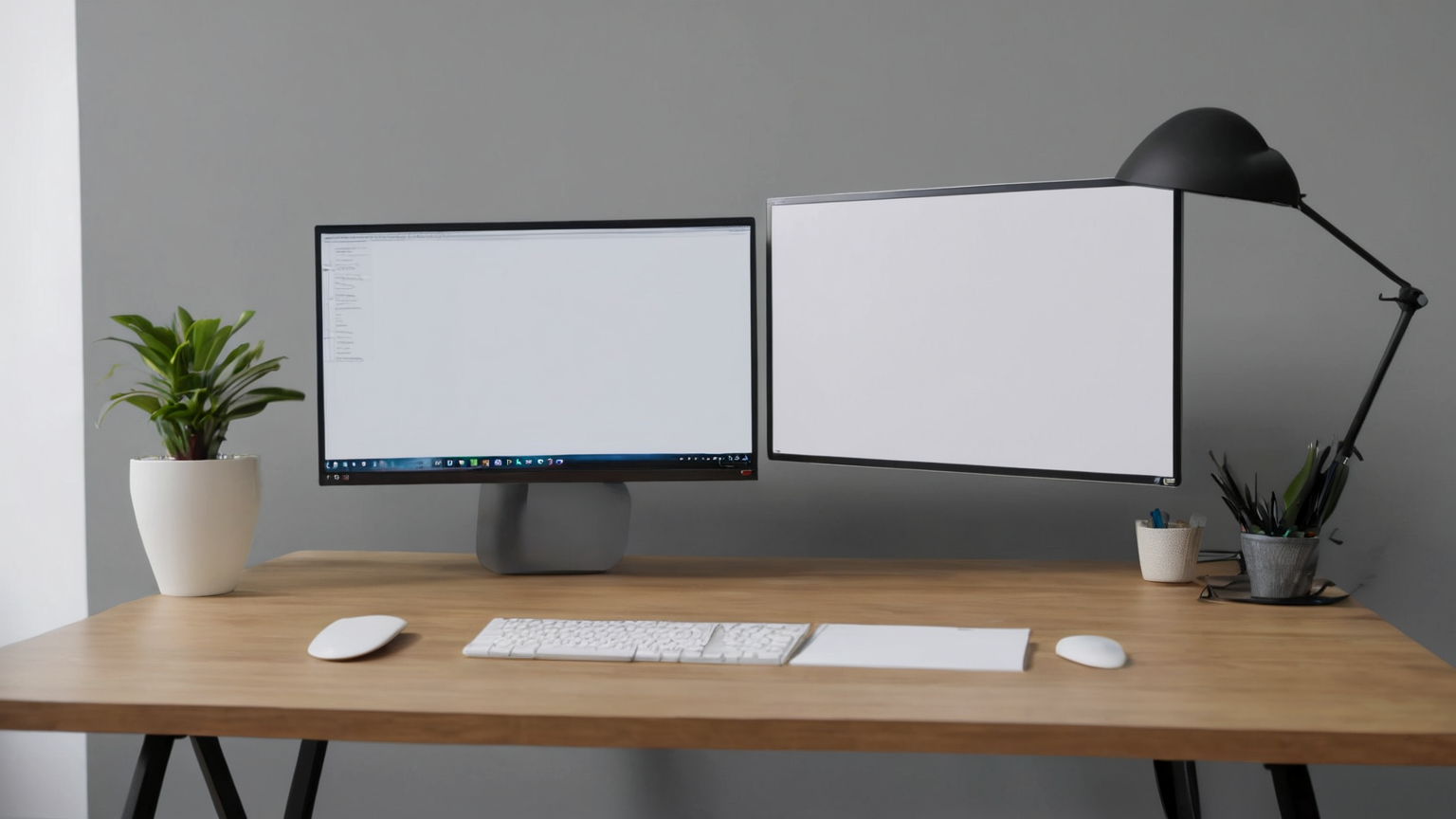
Updated 2026-06-16. Video calls turn a private room into a work artifact. A background can reveal family photos, school names, client paperwork, whiteboard notes, medication bottles, shipping labels, calendars, travel location, or a second monitor with sensitive content. This checklist focuses on privacy and professionalism, not aesthetics alone. It is current for common 2026 remote-work patterns across Teams, Meet, Zoom, hybrid interviews, client calls, and coworking spaces.
Camera-background privacy decision table
| Background risk | Quick fix | Better system | Verify before call |
|---|---|---|---|
| Family or child details | Move photos out of frame | Use a plain wall or divider | Camera preview |
| Papers and labels | Close folders and turn mail over | Dedicated call tray | Scan desk edge |
| Second screen | Blank or sleep display | Angle monitors away from camera | Test reflection |
| Room/location clues | Remove badges, school, travel tags | Neutral backdrop kit | Screenshot preview |
Audit from the camera, not your chair
Sit where you will actually take the call and open the camera preview. The privacy view is not what your eyes see; it is what the lens captures, including shelves, glossy frames, window reflections, desk corners, and the wall behind a standing desk. Take a quick screenshot for yourself and look for names, addresses, client logos, whiteboard text, family images, medication, financial documents, and travel clues. If the same workstation is used for multiple clients, assume the strictest client rule applies.
Build a neutral physical background first
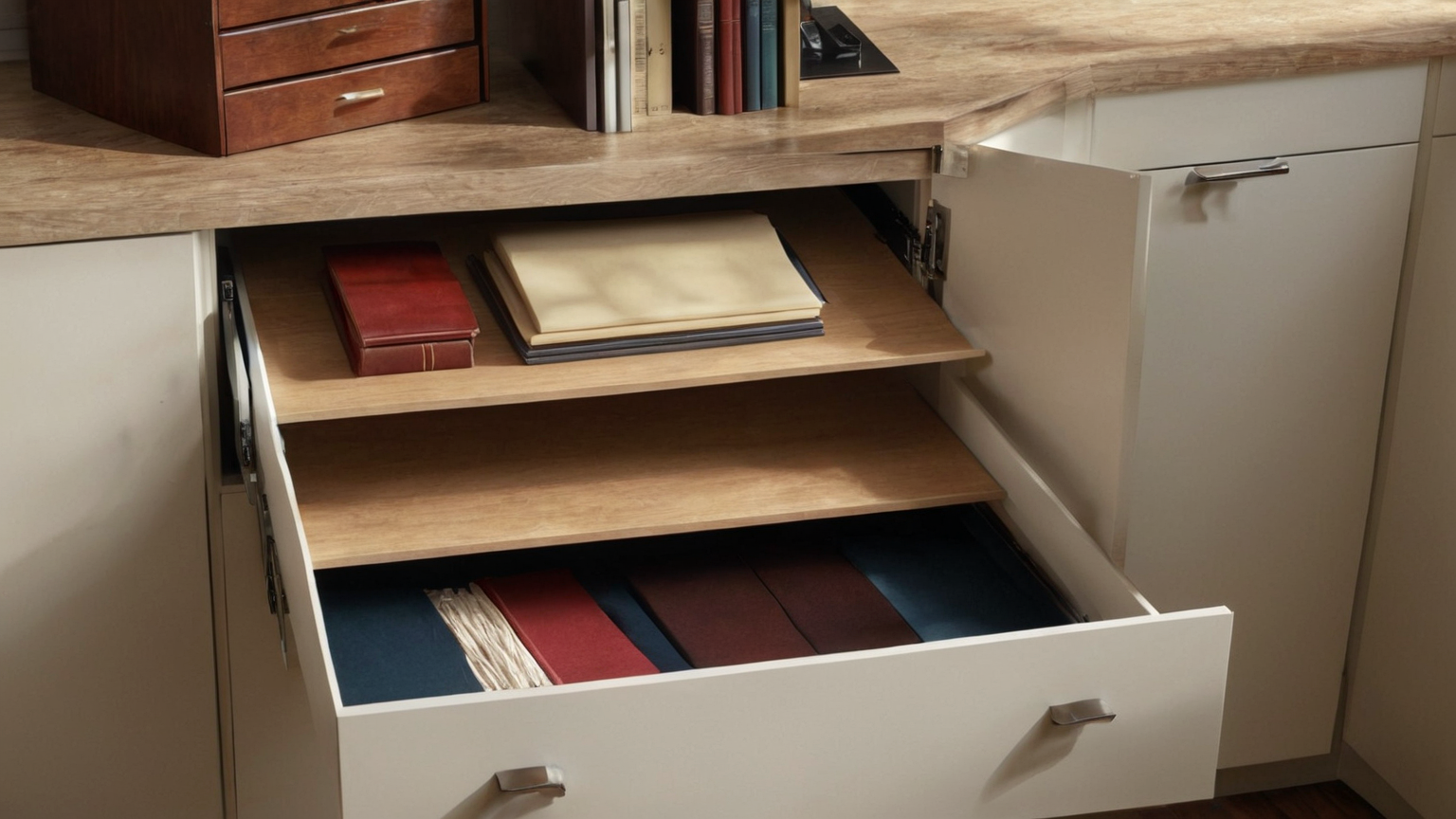
Virtual backgrounds and blur are useful backups, but a clean physical background is more reliable. A plain wall, fabric panel, room divider, curtain, or low-detail bookshelf is better than a busy room that software must constantly mask. Put family photos, certificates, mail, school papers, and branded client swag outside the camera cone. If you need warmth, use plants, lamps, and unbranded objects rather than readable artifacts.
Control screens and reflective surfaces
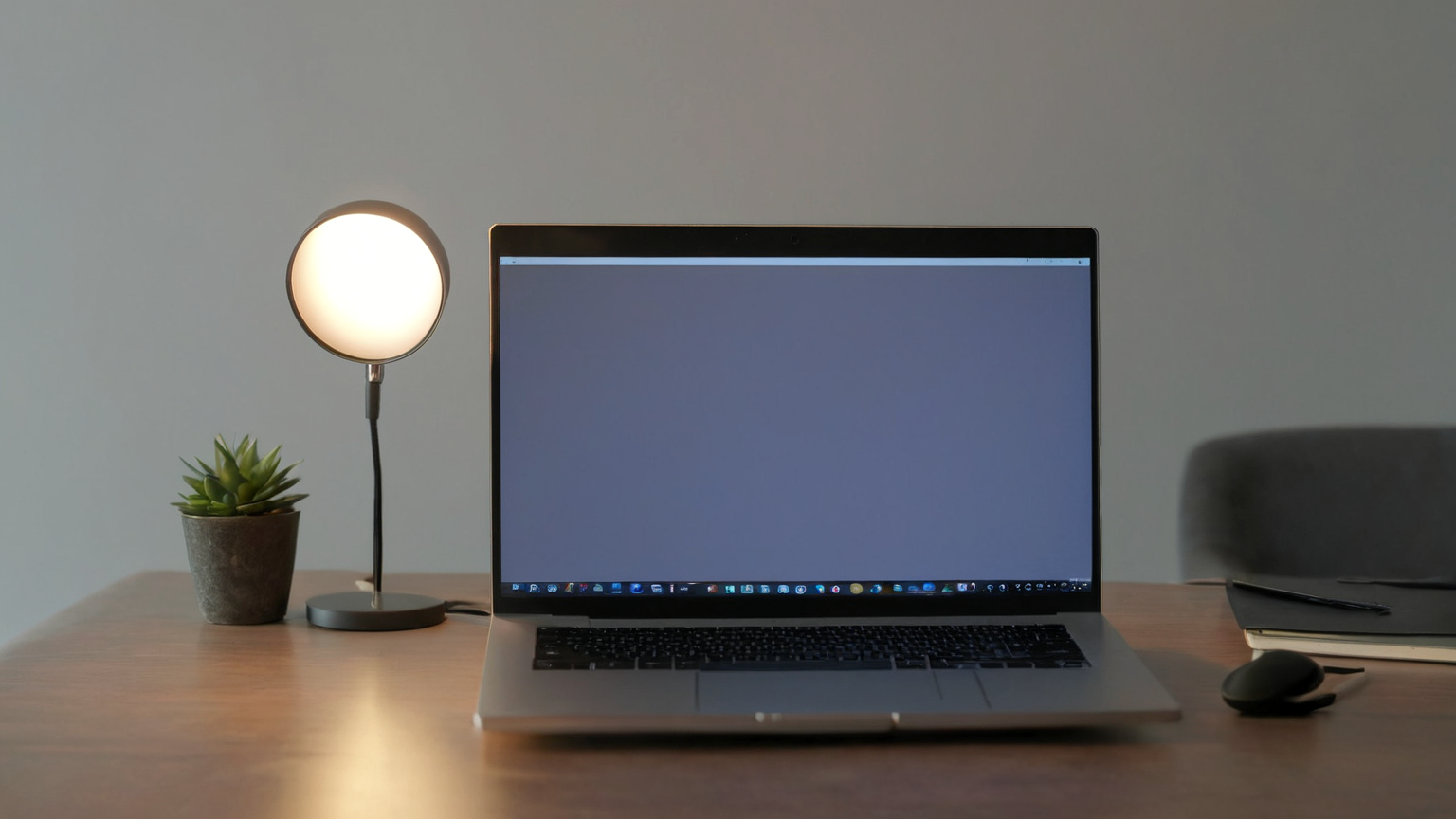
Privacy leaks often come from the edge of a monitor, a tablet lying nearby, a reflective picture frame, or a window behind the camera. Blank secondary displays before a call. Close chat, password manager, client portals, and file names before screen sharing. If you use a glossy monitor or framed art, check whether it reflects your main screen. This is especially important for interviews, legal or finance client calls, health-related discussions, and internal planning meetings.
Create a two-minute pre-call routine
The routine should be short enough that you actually use it: camera preview, desk sweep, screen blanking, notification pause, lighting check, microphone check, and call material ready. Keep a closed folder or drawer for papers that must leave the desk quickly. Use a webcam cover only when off-call; before joining, confirm the camera shows exactly what you intend. If the room changes during the day, repeat the routine.
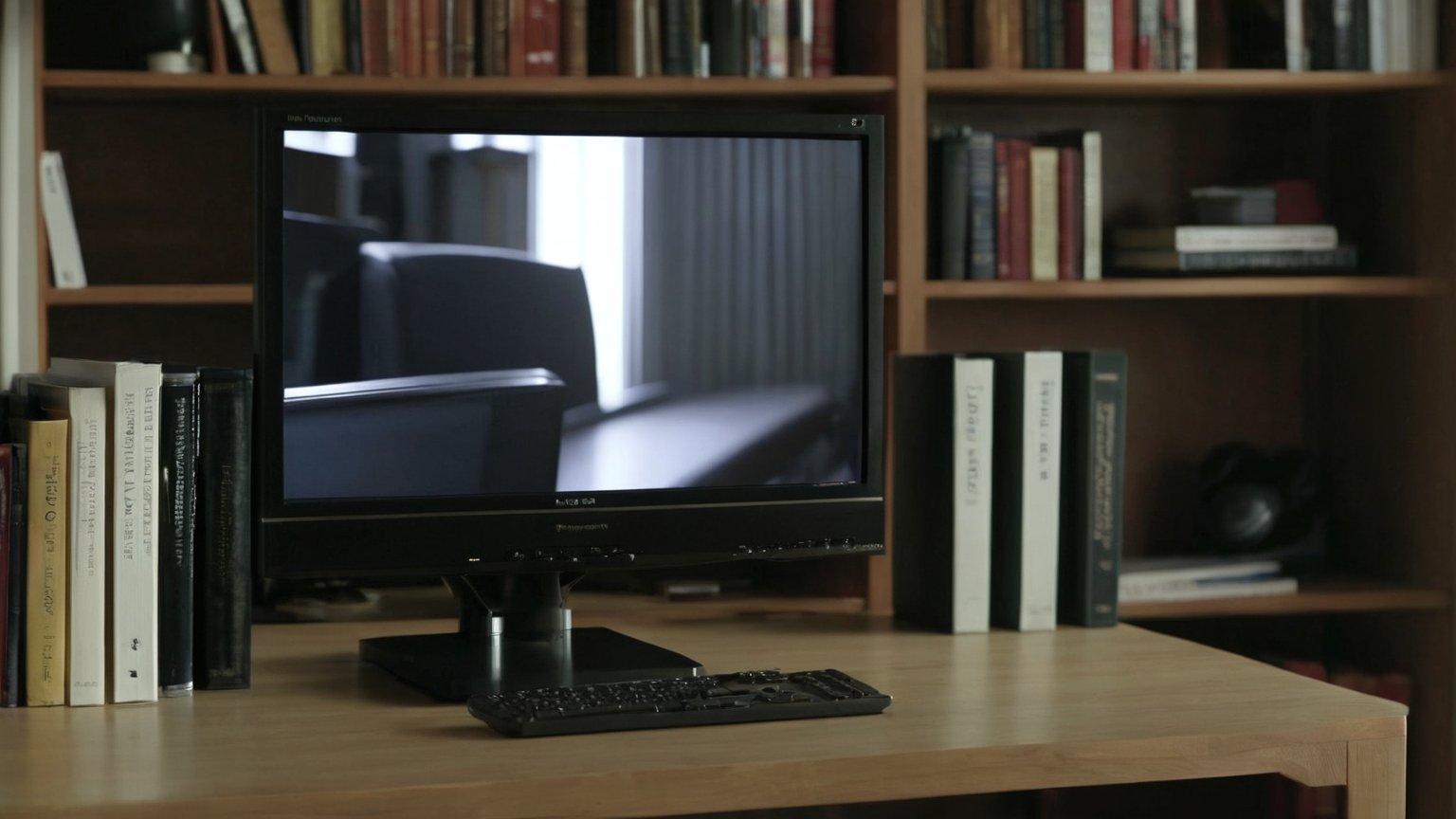
Handle coworking, travel, and shared homes
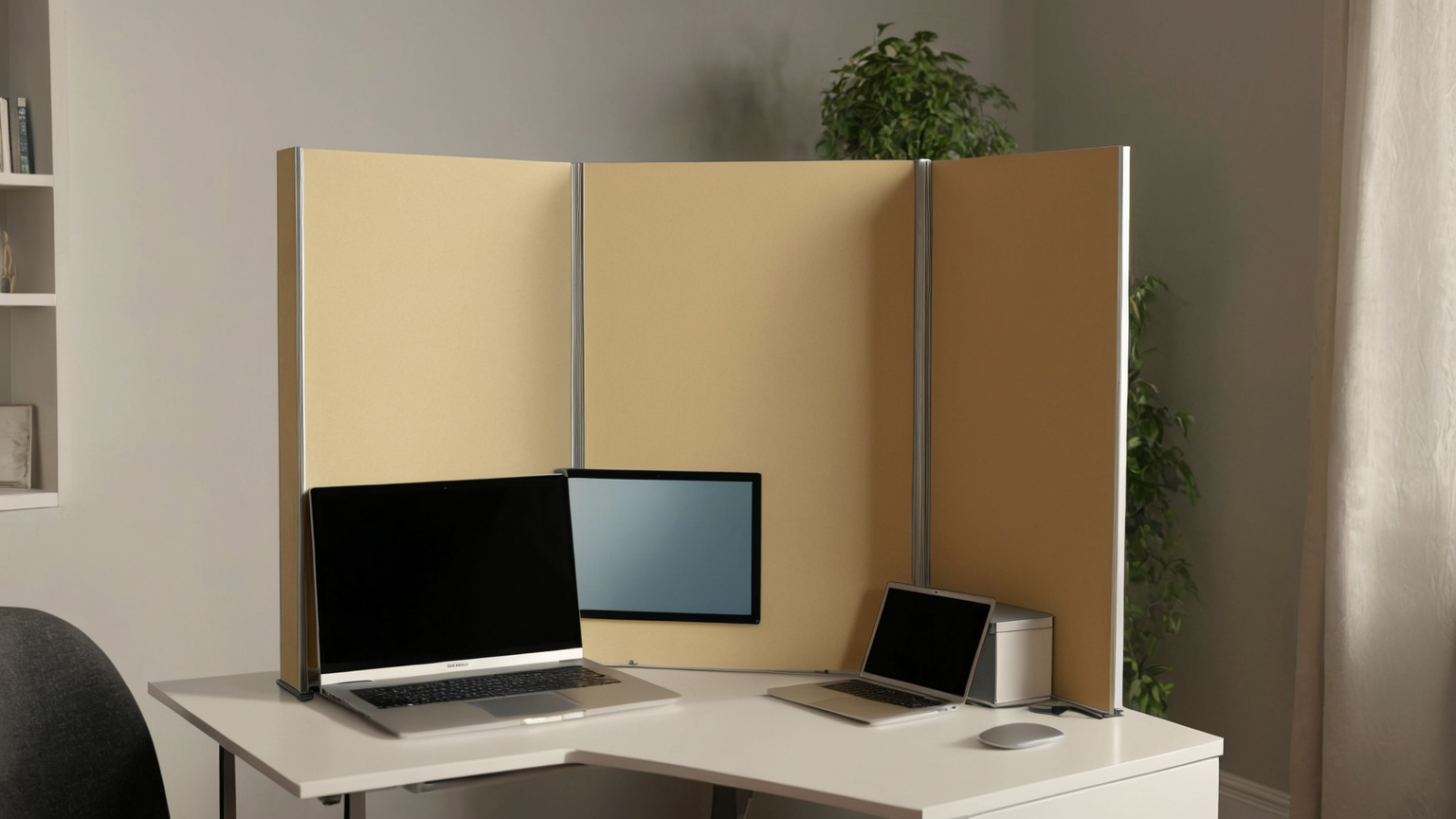
In coworking spaces and hotel rooms, choose a wall-facing desk when possible. Avoid showing room numbers, hallway signs, boarding passes, luggage tags, client notes, or other people. In shared homes, set a boundary for children, roommates, and partners so they know when a call is sensitive. A small folding screen, plain cloth backdrop, or camera angle pointed into a neutral corner can be more dependable than asking everyone else to freeze.

Practical checklist
- Camera preview checked from the actual call position.
- Family photos, child details, mail, badges, and client materials are outside frame.
- Secondary screens are blank, asleep, or angled away.
- Notifications and private tabs are closed before screen share.
- Background blur or virtual background is tested, not assumed.
- Travel/coworking calls avoid room numbers, signs, tags, and other people.
Mistakes to avoid
| Mistake | Why it matters | Better routine |
|---|---|---|
| Trusting blur without testing | Edges and reflections can reveal details | Use a neutral physical setup |
| Cleaning only the center of the desk | Camera wide angle catches corners | Sweep the whole visible cone |
| Keeping a live second monitor | Names and messages can appear in reflections | Sleep or blank displays |
| Using branded client swag as decor | It may disclose relationships | Use unbranded background objects |
FAQ
Is virtual background enough?
It helps, but it can fail around edges, reflective surfaces, second monitors, and screen sharing. Treat the room itself as the primary privacy control.
Should I blur every call?
Blur is useful for quick calls, but high-trust client or interview calls may need a clean physical background plus a tested blur setting.
What is the fastest pre-call check?
Look behind you from the camera angle, close or turn over papers, blank nearby screens, remove family/location clues, and test lighting.
Readiness and trust note
Role-specific background rules
A freelancer should treat the background as a client boundary. One client should never see another client’s logo, draft, whiteboard, ticket title, printed contract, or packaging slip. Keep a neutral call zone and move client folders into a closed drawer before calls. If a call requires portfolio examples, prepare those files intentionally instead of letting the room provide accidental proof of work.
A manager or people lead has a different exposure pattern. Employee names, performance notes, interview schedules, compensation reminders, and incident documents can appear on sticky notes or second screens. The safest routine is to close people-related materials before joining, pause notifications, and avoid taking sensitive calls in a room used for family logistics. A blurred background does not protect a notification banner during screen sharing.
A job seeker should remove clues that could distract from the interview: current employer badges, school documents for children, medical items, political signs, room numbers, and messy work papers. This is not about hiding personality; it is about keeping the interviewer focused on skills and reducing bias or privacy leakage. Test the camera at the same time of day because backlight and reflections change.
A traveler should assume the temporary space contains accidental identifiers. Hotel stationery, door hangers, luggage tags, conference badges, coworking signs, and windows with recognizable landmarks can reveal location. A plain wall, closed curtain, or portable divider is often enough. If the call is sensitive, prefer a headset, wall-facing desk, and blank screen behind the camera rather than a busy café or lobby.
Teams can make this easier by defining a humane standard: neutral and privacy-safe, not expensive or performative. Provide a checklist, accept camera-off participation when appropriate, and avoid judging workers by room quality. That keeps the guidance practical and inclusive while still protecting client and household information.
Team policy that does not punish homes
A good camera-background policy should protect data without turning home offices into status competitions. Require privacy-safe calls for sensitive work, but allow multiple ways to comply: camera off, blurred background, physical divider, office room, or approved virtual background. Workers in small apartments, caregiving homes, shared housing, or temporary travel should not be treated as less professional because they need a different privacy method.
Managers can help by labeling meeting sensitivity in advance. A casual team social may not need the same setup as a client negotiation, personnel discussion, incident review, or recorded webinar. If the meeting is sensitive, say what should be protected: client names, personal data, unreleased work, financial details, or household identities. Specific guidance is easier to follow than “look professional.”
Review recorded calls too. A background that seemed harmless live can become searchable or shareable after recording. Before publishing a recording, check thumbnails and screen-share segments for private details. If a leak is found, trim or replace the recording rather than blaming the worker. The mature team response is to improve the system.
One-page owner handoff
End with one concise owner handoff. Write the decision owner, the next review date, the evidence folder location, the rollback or escalation path, and the exact condition that means the plan should stop and a qualified professional or official support channel should be contacted. This section is intentionally plain. It prevents the article from becoming a list of tips with no operating owner. A useful plan tells the reader what to do today, what to watch tomorrow, and when not to improvise.
The handoff also supports trust. Keep private data out of shared notes, avoid screenshots that expose accounts or addresses, and record only what a household needs to make the next safe decision. If a future fact changes, such as a provider policy, official safety recommendation, fee rule, or product instruction, update the source before repeating the routine.
A final monthly reminder is enough: confirm the owner still exists, the evidence folder is findable, and the next action still matches current official guidance. Remove stale notes that could mislead someone later.